Support

Thank You for Choosing VIPorbit!

Check out the new features in our latest iPhone app update - VIPorbit iPhone version 2.0.

At VIPorbit, we value our customer relationships and want you to get the most from our mobile contact management software. To learn about the product and specific features, browse our easy to search, frequently asked questions (FAQs).  You can contact us directly at any time with a specific question using the form below. 

Download the QuickStart Guide for the iPhone App

New to VIPorbit for the iPhone? Want a step-by-step guide to getting started? Download this QuickStart Guide written for users by a user. Learn useful tips and tricks to get the most out of VIPorbit on your iPhone and mobile contact management.

Frequently Asked Questions

Yes!  If you are going to use both apps you'll want to use the same account for both.  This will be important when we have a sync service to keep the two apps automatically updated.

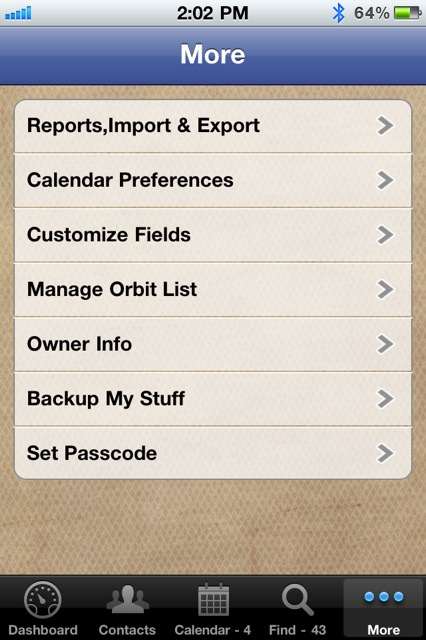
If you've already registered the app on one device, you can view it to use on the second device.  To view your username on the iPhone, tap on More => Owner Info and your username is a read-only value shown at the top of the screen.  On the iPad app, it's on the Owner Record screen.  If you cannot remember your password, you'll have an opportunity to reset it during the installation.  Or, you can find this on the iPhone app under More => Manage Security => Reset Password.  Or, in the iPad app under Tools => Manage Security => Reset password.   If you no longer have the app installed and need to know your username, please contact us at  [email protected] and provide your email address used when you registered the app.

Backup My Stuff is an add-on feature that you can subscribe to that will keep all of your data stored safely. Finally an app where you can back up your info that is INSIDE of the application. Not just the app itself to where all of your vital "stuff" is gone and never to be found again.  Not only does it backup your data, but it saves all of your app settings, pick lists and customization you've done to make VIPorbit work for YOU.

Also, Backup My Stuff archives EVERY individual backup you do. Giving you the peace of mind that no matter what, you will never lose your information.

Note:  A Wifi connection is required to Backup and Restore.  If a Wifi connection is not available you will receive an error message saying it cannot connect to the server.  This is for your protection to prevent any excess data usage with your cellular carrier. 

No, the free versions of VIPorbit for iPhone and iPad have every feature available in the full version. While the free versions are full-featured, they are limited to 100 contacts. If you have a question regarding a specific feature, please contact Support before upgrading. We're working hard to build a satisfied VIPorbit user community and want to help you make a confident purchase!

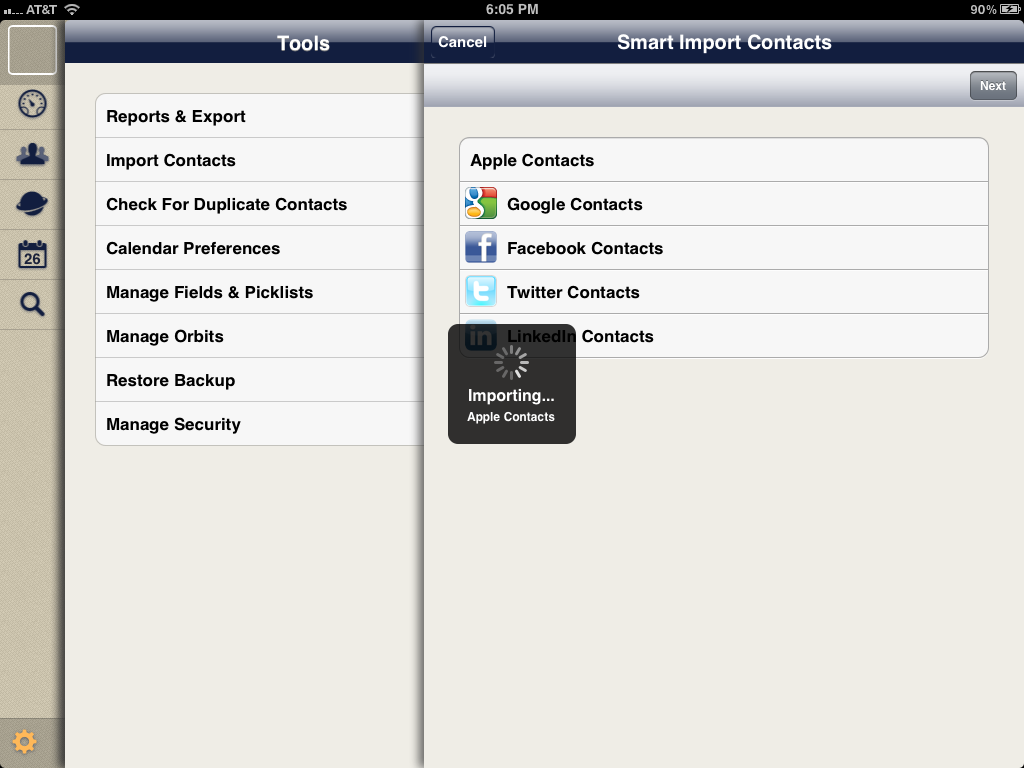
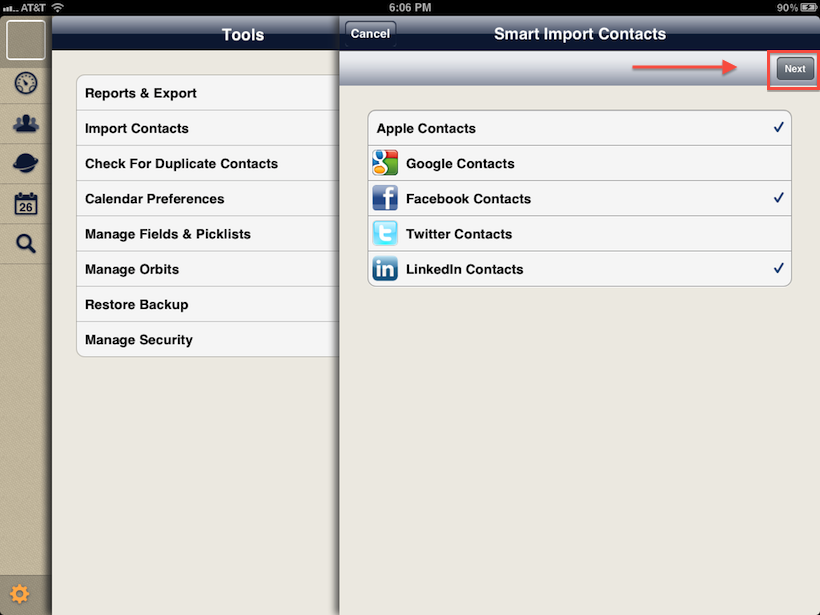
Step 1 - Select your contact source(s), log in (if applicable) and when complete, tap the Next button to continue


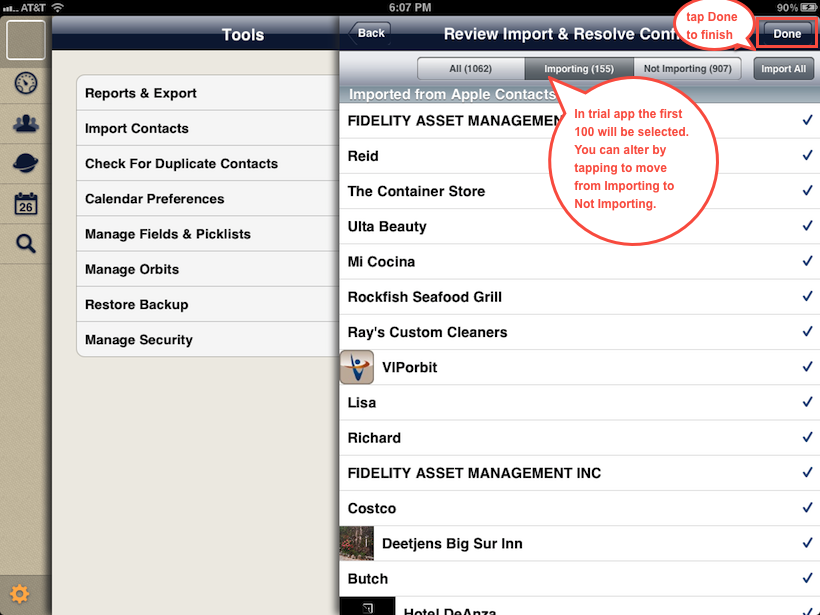
Step 2 - This is the final screen. The first 100 contacts will be checked if you're using the free/trial version under Importing. The rest will be under Not Importing.  Duplicates (matches on first and last name) will also be under Not Importing.  You can change any contact from one list to the other by tapping on them. When you're satisfied with what is selected, press Done in the top right corner to complete.  You always have the option to tap Import All as well.


.

Backup My Stuff (BMS) does just as the name implies. Use BMS to safeguard your data against loss and to retrieve your contacts if you change devices. BMS does not sync the data between devices. We currently have a product in development that offers true sync capabilities. If you want to use VIPorbit on your iPhone and iPad at the same time before the release of the sync product, we recommend you use the iPhone product on both devices and employ BMS to keep the data consistent on both devices. For more about using the iPhone version of VIPorbit and BMS to maintain data consistency between devices, read  http://bit.ly/x8Md9X

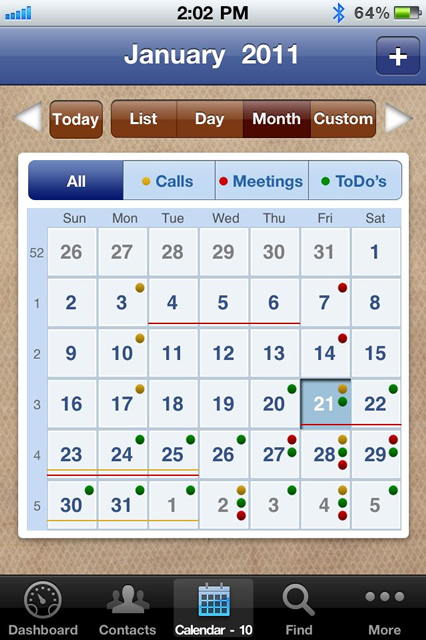
Why yes it is :-)   Ok, this is an oops.  Our February month calendar view on the iPhone incorrectly stops at Tuesday, February 28th, showing Wednesday as March 1st.  The good news is on the Day, List and Custom views Wednesday, February 29th is correctly acknowleded and can be used for scheduling.   Also on the March monthly calendar view, the 1st shows correctly on Thursday.   We'll be sure and get this corrected prior to 2016.  

Yes we can!  There is an issue with how messages are sent that was introduced with iMessage in iOS 5.  Prior to sending a text message to an Orbit tap on Settings => Messages and make the following changes:

  • Turn off "iMessage" (send text messages to other iOS 5 devices via wifi)
  • Turn off "MMS Messaging" (sending pictures via text)
  • Turn off "Group Messaging" (being able to see all participants on the group message and reply all)

After your message is complete, you can go back into Settings and turn these features back on if you desire.

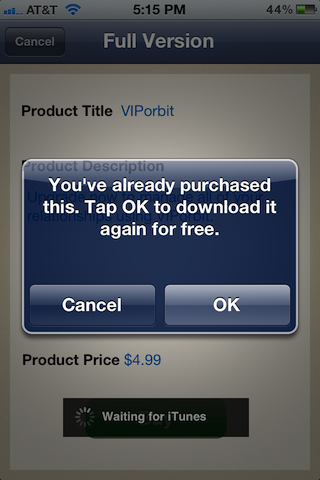
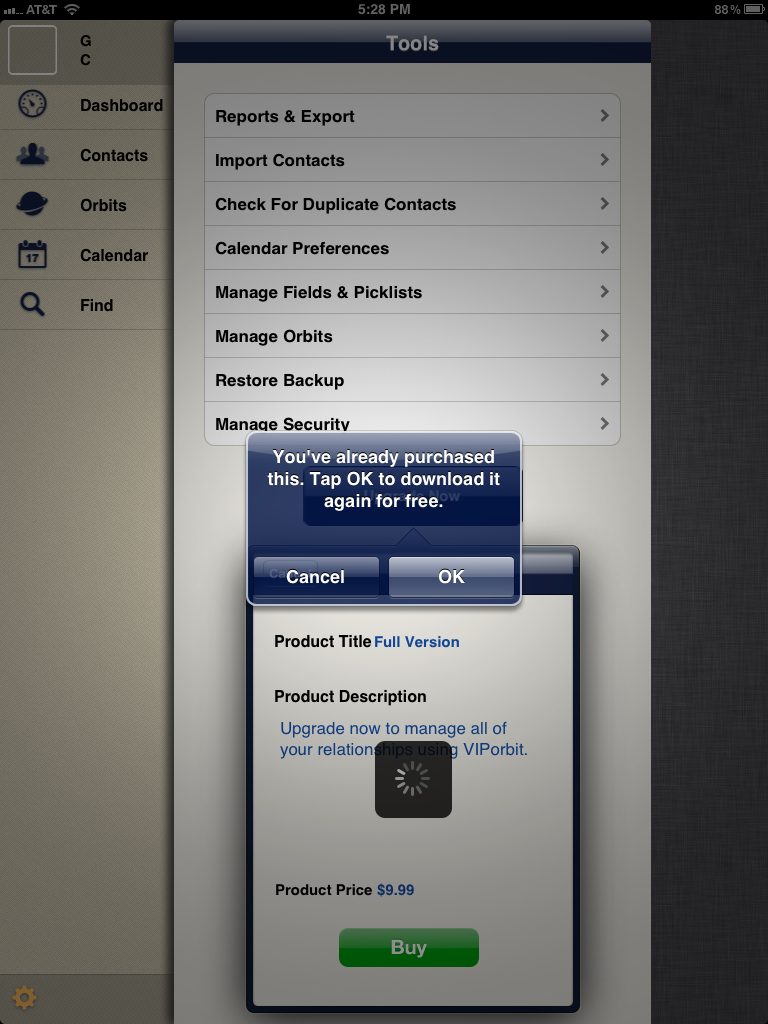
If you have the iPhone app:   We have two versions of VIPorbit on the App Store for your iPhone, a Full and a Lite (try-before-you-buy).  Please note, these are SEPARATE apps meaning if you download the Lite/free version and upgrade then decide to download the other full version later and pay again, you will be charged again.   If you have to reinstall for any reason or your installing on another device, you MUST download the version you started with.....if you paid up front for the app then that was the full version.  If you downloaded for free then decided to upgrade inside the app, this is the Lite version.  As long as you download the same one you originally made your purchase from, you won't be charged again.  On the Lite version, you will have to tap Upgrade Now to go through the process but you'll get a message saying you've already paid for this app and can download again for free.

Here is the screen on the Lite app with the message:


If you have the iPad app:  The new iPad app has just one version and it's always a free download, a try-before-you-buy, like the Lite version we offer on the iPhone app.  The same rules apply as mentioned above. If you have to reinstall for any reason after you've purchased the upgrade in the app, you'll have to go through the upgrade process again but you won't be charged. 

Here is what the screen looks like when you're upgrading after previously purchasing:

  • An updated, clean-look user interface with an easy-to-use Contact Dashboard
  • A Today button to go straight to all of your activities for the day

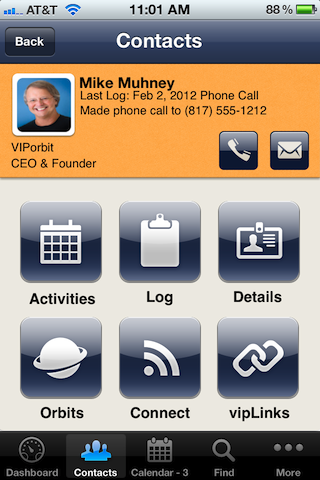
  • Contact screen: drop-down menu is gone replaced by a Contact Summary with quick-tap Call and Email buttons at the top

  • Tapping the Orbit icon on the Contact List toggles between an alphabetical and user-defined Orbit list order
  • Completing Activities
    • Tap a new Follow-up button when completing an activity to schedule a follow-up
    • Records all contacts in each person's Log who were participants in that activity
  • A new reported added - Completed Activities - which compiles completed activities for all contacts, an Orbit, or a custom Find and also by a custom date range
  • New tasks for entire Orbits include:
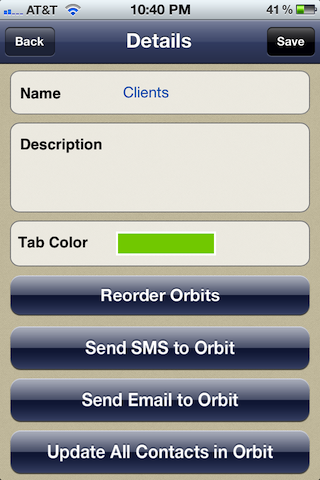
    • Send Email or SMS to all contacts in the Orbit
      • Note: The first email or phone for the contact defaults to Primary for these bulk tasks.  Only one can be the primary.  Before sending an email or an SMS to the Orbit it's recommended to review the values designated as primary.  A log entry will be added to each contact that it was sent or not sent (if for example a contact didn't have any email addresses).
      • Regarding Group SMS messages: Due to an issue introduced in iMessage in iOS 5, if you want to send messages to a group of people you must change your Settings > Messages to:
        • Turn off "iMessage"
        • Turn off "MMS Messaging"
        • Turn off "Group Messaging"
    • Update contact data for the entire Orbit for all the contacts within

  • Country added to Find search criteria

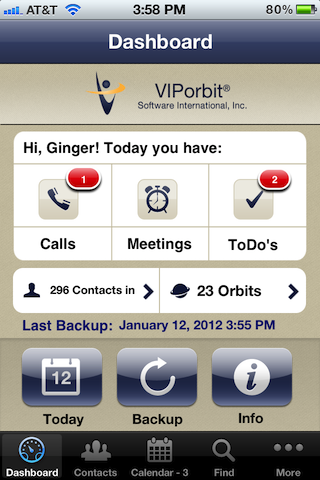
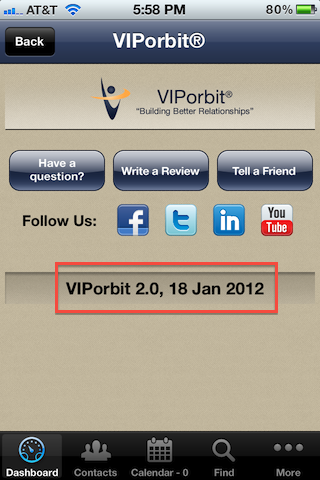
The name of an app icon doesn't change even though the internal contents do.   You know you have the update if you can enter more than 100 contacts.   Also, if you tap on the i on the Dashboard the product name and date will be changed from VIPorbit Lite 2.0, 18 Jan 2012 to VIPorbit 2.0, 18 Jan 2012 and the green Update Now button will be gone.  Please do not download the other VIPorbit iPhone app that is the full version as iTunes see's this as a separate purchase and you will be charged twice.

Here are a few before and after screen shots:

         
.

Please note: this is referring specifically to the iPhone app, not the native iPad app we've now released.

Great questions and the first answer is yes!  While it was originally designed for the iPhone in a single user situation, we're happy to provide you the workaround to use it on both devices with one app.  (Meaning you don't have to purchase two copies of the app.)  Follow the detailed instructions below and you'll be up on your iPhone and iPad in no time.  Please note a few details first.

A few details:

  • This assumes you are using the same iTunes account on both devices.
  • Please note that this is a file-based sync meaning you can only use one device at a time, not simultaneously to keep your data current.
  • Please have an active wifi connection before you get started.
  • You perform the setup completely on the first device before moving to the second.
  • Make a note of the username and password you entered on the first device while loading the app.

Now, let's get going:

(These instructions have you setting up the app first on your iPhone but it can be either one.  If you started or want to start with your iPad first, just flip the words iPhone/iPad around)

  1. With VIPorbit already running on your iPhone, tap the red Backup My Stuff button to purchase the service, it will ask for your iTunes password, and should start the backup/upload automatically when the purchase is complete.
  2. Verify the backup was successful by tapping on More => Backup My Stuff and tap the Restore button.  You should see the date/time of this backup and the number of contacts.
  3. Now go to your iPad, if you had previously downloaded and installed VIPorbit here, delete it.  We have to reinstall so it recognizes your purchase of Backup My Stuff.
  4. Next, download VIPorbit straight from the App Store.  Make sure you download the same version you started with on the iPhone .  What does this mean?  iTunes see's our Lite/Free and Full apps as different products.  So, if you started with the free/lite version then go that route, if you started with the paid/full then select that.  As long as you keep with the same product you started with, you will never be charged for the app again regardless of how many times you download it.  If it's the free/lite verison you started with, you will have to tap Upgrade Now and go through the Buy steps but you won't be charged again.  For more details and screen shots on this, click here: http://bit.ly/yrerdk
  5. When you tap to load it, make sure you log in with the same username and password you used for the iPhone installation of VIPorbit.  
  6. After logging in, select your Country, then tap the Restore button and you should see the backup you just uploaded from the iPhone.  Tap it and it will have you restart VIPorbit.  Once you reload you will have the same data on both devices.   You can see screen shots of this under our FAQ that starts with "I have a new iPhone"
  7. Going forward you'll need to backup and restore when going from one device to the other.   Scenario:  I've been using VIPorbit on my iPad while at my office.  Now as I'm leaving for the day, in VIPorbit I tap Backup My Stuff on the Dashboard on my iPad.  On my iPhone, in VIPorbit I tap More => Backup My Stuff and tap the Restore button and tap on the backup I just uploaded.  Now I'm headed out armed with my latest changes on my iPhone!

Yes! Your iPhone 4S supports dictation in any app that has a keyboard.  So instead of typing, you can speak and your words will be entered as text.
To start dictation, tap the microphone button on your keyboard and start talking. When you’re finished, tap Done and your words will be turned into text. 

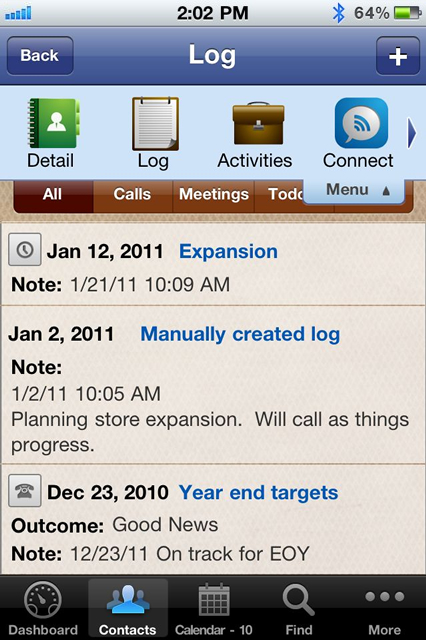
This can be used anywhere in VIPorbit the keyboard is accessed.  A specific example:   You've just received a call from a client.  You want to log the call on your client's contact in VIPorbit and you want to add some detailed notes regarding the conversation.  You go to the contact, tap the menu, tap Log and the plus to add a log.  At the bottom you tap on Notes and your keyboard will pop up with the microphone to access Siri.  You speak your detailed notes for the call and press Done to save.  

Think about it  - by speaking your words via Siri, you're probably going to elablorate with more valued content than tapping mispelled words on the phone's small keyboard.  That added value might enable you to secure future business with this and all your clients going forward!

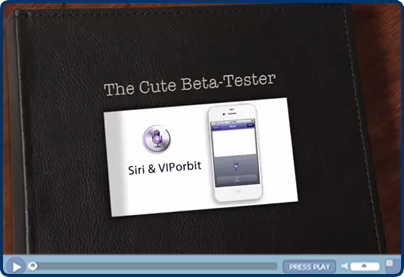
Want to see it in action?  Click below to watch a video of Siri in use with VIPorbit.


The Cute Beta-Tester


Yes!  Now with the latest version (V1.3) groups in your iPhone's Address Book will import into VIPorbit as orbits!  This will maintain your existing groupings and will still show a complete list of your contacts in the All orbit.

Don't have any groups in your Address Book?  You can achieve this a number of ways whether you're using Windows or Mac:

  • On a Mac you can manually create groups in your Address Book application and they will appear in iTunes under Sync Address Book Contacts to select. Please note:  If you're syncing with additional sources such as Exchange, doing this might duplicate your contacts so make sure this is not the case.  For more information, see our FAQ titled  "Why Do I Have Duplicate Contacts After Importing?"
  • If you're using Outlook:
    • Mac - Using Outlook 2011, you've already selected the contact files you want to sync with.  If you label your contacts in Outlook using Categories, those Categories will show up as Groups.  Please consult Microsoft Outlook technical resources for specifics on how to do this.
    • Windows - Using Outlook 2007 and higher (we tested with 2010) your different contact files will show up as groups.  You can easily create a new contact file and copy the contacts you'd like to be in a group.  For detailed instructions, please consult Microsoft Outlook technical resources.

VIPorbit imports contacts directly from your iPhone's Address Book by answering Yes when you're installing or later by tapping More => Reports, Import & Export => Import => Import Contacts. 

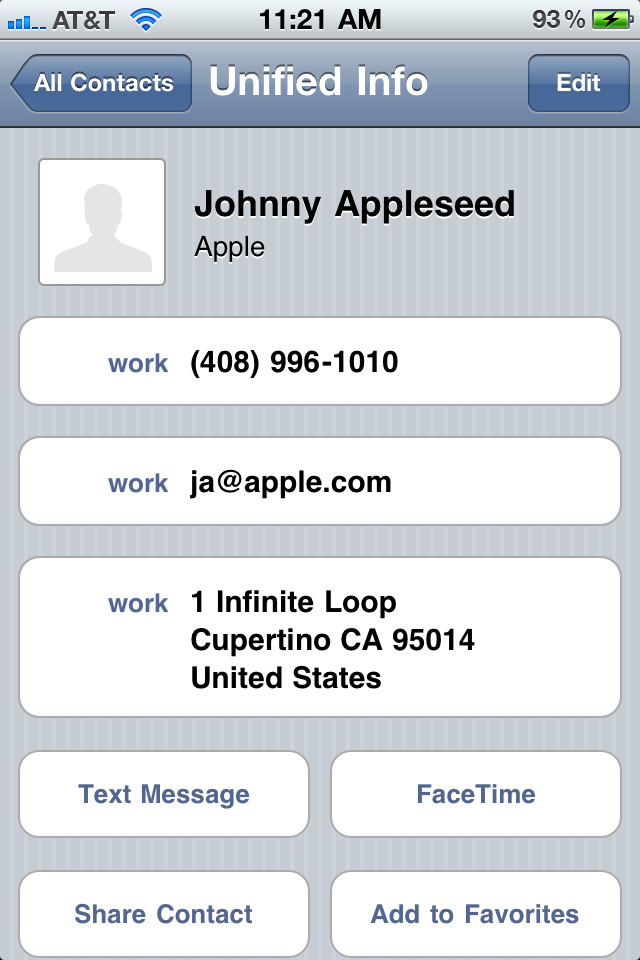
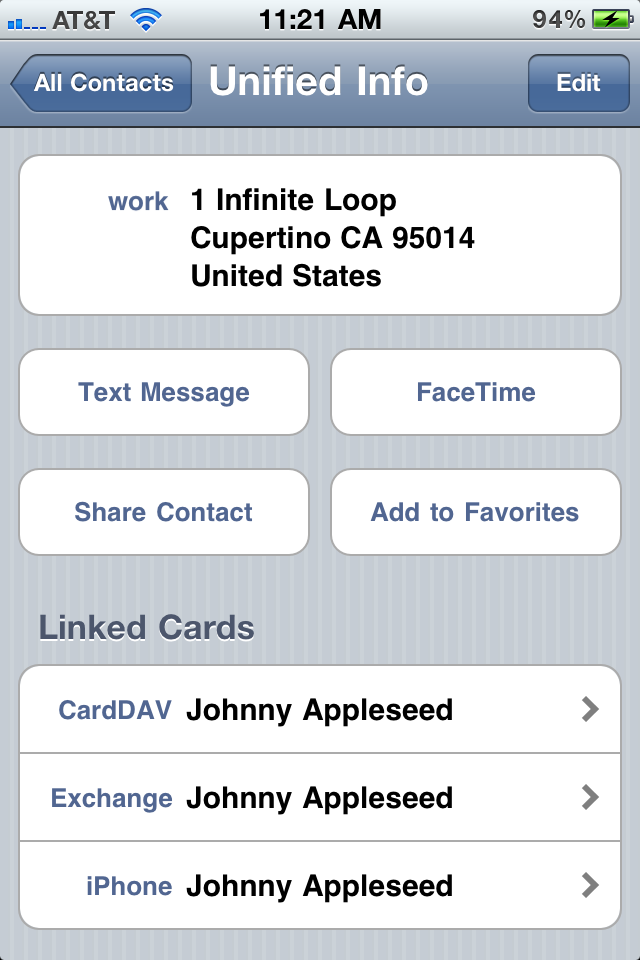
One of the items in Apple's iOS 4.0 update was a feature that combined contacts into a view entitled Unified Info in the Address Book's All Contacts list. Contacts from multiple synchronization sources (MobileMe, your Mac, Exchange) that are an *exact* match on first and last name will automatically get "combined" in this unified view.  At the top of the contact card it will say Unified Info.  At the bottom of the contact card you'll see an area labeled Linked Cards which will tell you which Contact source the duplicate contacts emanate from.  When VIPorbit imports, it correctly sees these contacts as individuals and imports them all.....it cannot know which contact "wins".

Here are sample screen shots. This iPhone is syncing with Yahoo contacts, Google Apps and the Mac address book (the latter uses iSync which the source can be MobileMe or Google or others):

Top of contact card    Bottom of contact card

Solution

The solution is to de-dupe your iPhone's Address Book then re-import into VIPorbit. After deduping, delete the VIPorbit app and reinstall via an iTunes synch.  You will not need to register again.  You'll enter your user name and password then you'll be prompted to Import your contacts.

To De-dupe

There are multiple sources in the Apple Support forums that provide instructions for this, but here are a few suggestions.  One of the quickest ways to correct the duplicate contacts is when synchronizing your iPhone with your desktop/laptop.  With your device selected in iTunes click on the Info menu area at the top of the screen and see if you have a check mark by Sync Address Book Contacts.  Uncheck this and re-synch to your iPhone.  Check your All Contacts list in the iPhone's Address Book and see if that corrected your duplicates.  Another way to eliminate duplicates is to temporarily turn off an account that provides Contacts (Exchange, Google Sync via Exchange, Yahoo CardDav, etc).  On your iPhone tap Settings =>  Mail, Contacts, Calendars, select the account and tap the slider for Contacts so it reads OFF.  After you import into VIPorbit, you can turn this back on if you wish.

Submit a Ticket

If you cannot find the answer to your question within our FAQs, email us at [email protected]. Please tell us what app you have (iPhone or iPad).  The more detail you provide, especially attaching screen shots, the better we can assist!

Thank you,

VIPorbit® Support Team